Last updated on June 19th, 2025 at 04:39 am
How can we Install JIRA In Windows?
- JIRA can be used as cloud environment and Server or Company’s own environment.
- For Cloud environment, User does not need to install jira software.
- For Server, User needs to install JIRA on the Server or System.
- JIRA is license version software project management tool. User has to but it.
- They also give 30 days’ free trial.
Please follow bellow given steps to Install JIRA in Windows System
Prerequisite : Java software should be installed in your system and JAVA_HOME environment variable should be set. Follow the steps given on THIS PAGE if it is not installed in your system.
- For company’s own environment set up, we need to Install JIRA for available port.
- You can download 30 days free trial of jira from THIS LINK.
- It will show you screen like bellow. Click on Download button to start downloading jira software.

- After download, Take .exe file on desktop do double click on icon and ‘Run’ it.
- Now you need to click on ‘Next’ button.

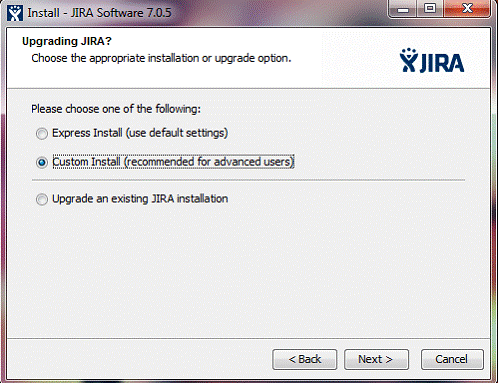
- Then again one screen will be displayed, here you need to select ‘Custom Install’
- We can do installation for server and particular system.
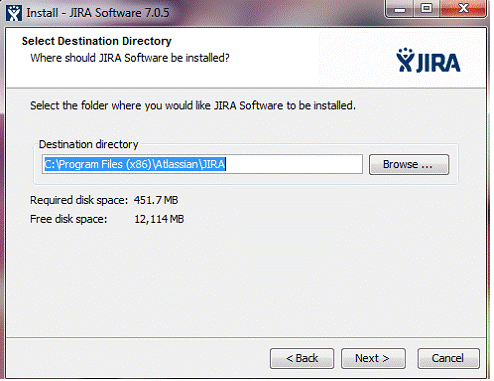
- Select destination directory and click on ‘Next’.
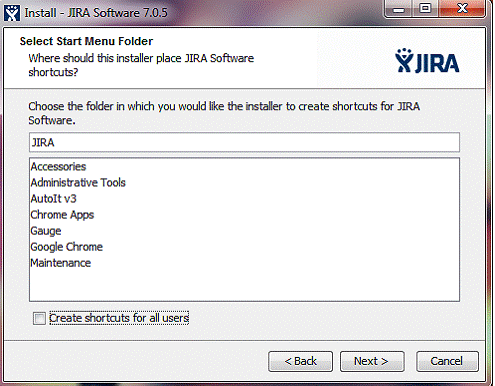
- Use default ports first. If 8080 port is used here, You can enter here Server’s Port also. JIRA will run on that particular port only.

- This is the last step for installation of Customize service of JIRA.
- Now If user wants to access JIRA then he should enter URL as IP Adrress:Port number/
- For Example 10.34.56.166:8080/
- Take Here IP Address(System where jira is installed) as 10.34.56.166, Port- 8080
- User will get login screen as shown bellow after installation.

How to create account on JIRA using Cloud Environment
- For Cloud Service, User Need to create account from THIS PAGE by entering valid email address and Password then verification mail has been sent to them.
Article Author : Guest User(S_Mehta 1104)

Hi…
its good initiative from you to have some JIRa tutorial here
Hope you will post more tutorials to get folks enough knowledge in near future
hi .. can u provide details of how to install bugzilla in windows 7